PREPARATIONS
- Put the firmware file which named install.img into a pen driver (U disc)
- Connect the pen drive with the firmware on the TV USB port, any USB port is OK.
OPERATIONS
There are two methods to install the firmware.
- Use the Power key in the front keyboard
- Turn off the TV, make sure the led of tv-set is off.
- Disconnect TV from power outlet.
- Press and hold the Power key in the keyboard.
- Connect the TV to the power outlet with the Power key in the keyboard pressed for a while (about 5 seconds) till the LED start to flicker.
- Wait for about two minutes. There will be progress bar displaying it the screen during installing the firmware.
- Use the factory menu option
- Turn on the TV set and press Menu key in the remote.
- Press the number keys in sequence 2 0 0 8 with the Main menu OSD displaying in the screen, then you will find the Factory Menu come out.
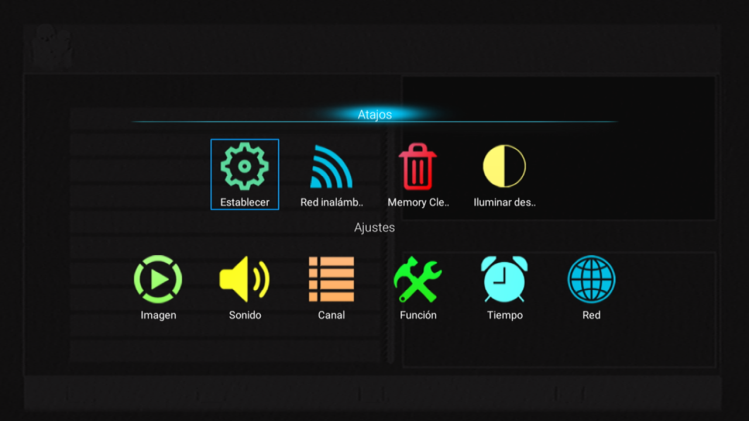
- Select the Upgrade item and get the Update sub page.
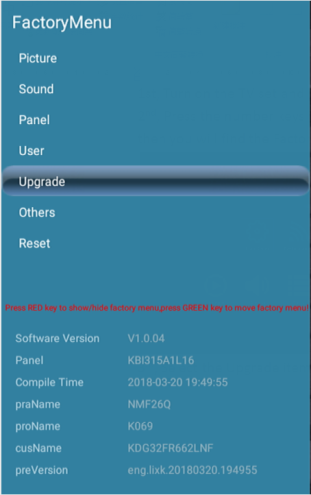
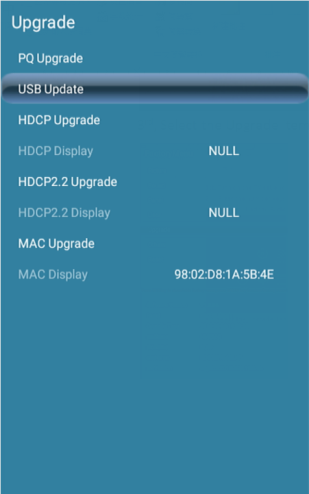
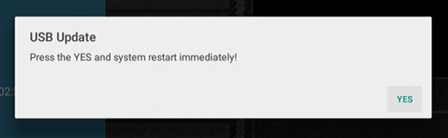
- Select the USB Upgrade item then select YES in the coming Dialog. The TV set will be restarted automatically, and the Upgrade process will be started.
NOTE
During the Upgrade process, the LED will keep flashing and there will be some process bars display in the screen.